


InnSights – What’s new with Sense 3.4?
Hello everyone, welcome back to the InnSights blog!
This will be a quick overview of what’s new with the recently released 3.4 version of Sense
Sense Playlist Management
This update will primarily focus on improving the management of individual playlists. The full list of changes can be found in our release notes here, but with Sense playlists you will now have:
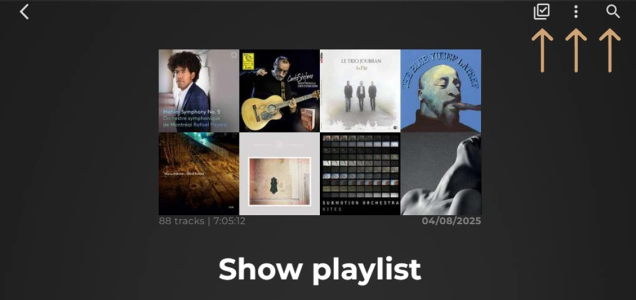
Playlist Track Sorting
As listed above, you can now sort the tracks in a Sense playlist by Added Date, Title, Album, Artist, Year, or Index:
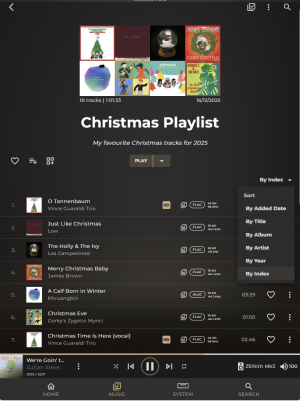
This provides new ways of sorting the tracks to your own taste.
Added Date will, naturally, sort the tracks chronologically from newest to oldest in sequence of when those tracks were added to the playlist. The newest tracks will be placed at the top of the playlist so that there is no need to scroll to the bottom of the playlist to find your most recent additions.
Title sort will alphabetically sort tracks A -> Z, titles that begin with a numeric will be placed before A in the alphabetic order.
Album sort will sort tracks by the same alphabetic rules but ordered instead by the title of the Album rather than the track.
Similarly, Artist sort will arrange the tracks by Artist name and ignore common determiners such as ‘The’ from placing the Artist under ‘T’ etc.
Year sort will arrange the tracks by the year of original release, sorted from newest to oldest.
Index sort will revert to the original order that you structured the tracks, meaning by default it will usually have an oldest to newest ordering of the tracks, but will also reflect any rearranging of tracks that you may have manually done since.
Search Track Within Playlist
A much-requested feature, it is now possible to simply tap on the new search glass at the top of the playlist page and enter search criteria to look for a track.
This does not need to be just the name of the track, and can include Album Title, Artist name, and even the genre/tag that might be associated with any relevant tracks!
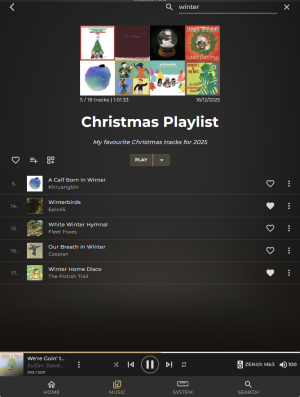
We understand that some users have extremely large playlists consisting of several hundred, if not thousands, of tracks, so the search function within playlists combined with the new sorting methods should now make it much easier to find exactly what you are looking for in your playlists.
Multi-Track Select Actions
One of the slightly more technical additions to the playlist menu, it is now possible to enable multi-select (using the same icon as used elsewhere in the app such as Albums and Genres/Tags) and choose multiple tracks and then apply an action to those tracks.
This can include playback actions such as starting a Mix of those tracks, have them Play Next in the current queue or Add to Queue to be played later on.
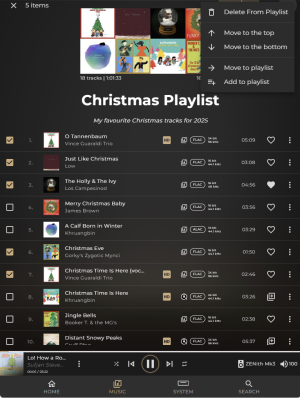
There are also organisational actions, such as moving the selected tracks to the top, or bottom, of the current playlist or deleting them altogether.
You can also Move to playlist, which will remove those tracks from the current playlist and migrate them over to a different one instead – useful if you are wanting to migrate songs from this playlist into a smaller, more defined one for example.
There is also just Add to Playlist if you simply wish to replicate these tracks to appear in another playlist.
Do note that all the new features mentioned above only apply to playlists made in Sense and will not work within the playlists that were synchronised in from TIDAL or Qobuz.
If you wish to have these sorting methods for those streaming service playlists, then the good news is that this is easily solved; simply go to the TIDAL or Qobuz playlist question, use the ‘add to playlist’ button (located next to the favourites ‘heart’) to add all those tracks into a NEW Sense Playlist. Voila! You have effectively migrated that playlist into the Sense playlist ecosystem, meaning you can use these new sorting mechanisms, and can also now add locally stored tracks into this playlist too!
Playlist Editor
Similar to the multi-track selection just mentioned, a similar layout can be found in the further options of all playlists under ‘Edit Playlist’.
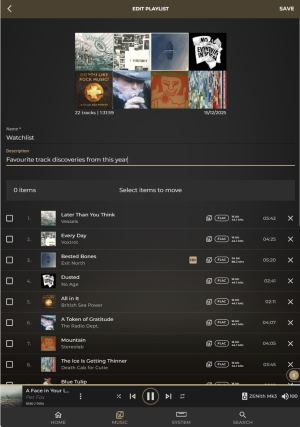
Here you can change the name of the playlist and the description for it, but you will also now have the checkboxes to select one or more tracks.
Once selected you will have the new option at the top of the page to MOVE.
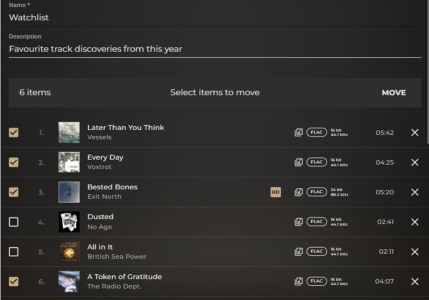
Once MOVE is selected, you will be returned to a view of the overall playlist where you can tap/click on a position to have all the previously selected tracks to be brought to. For example, if you have 2 tracks selected to move, and choose to move them track position 15, then these tracks will be moved to 13 and 14, keeping the existing track 15 in place.
Here’s a video showing this in practice!
And for the rest…
We have updated the Sonos integration to reflect the changes in the native Sonos app. It is no longer possible to have the Innuos automatically set itself up on Sonos app as used to be the case on the older S1 app. Instead, this page in Sense will now outline the exact credentials that you need to enter into the Sonos app when going through their Music Library setup process.
When enabling the Sonos integration here on Sense, this will automatically provide updates to the Sonos Music Library when new files are added to the internal storage of the Innuos, rather than relying on manual rescans performed on the Sonos app.
Sense 3.4 will also see the beginning of the dedicated SenseUPnP profiles, beginning with the Naim NDS 555 and Mu-So streamers.
Happy Holidays from Innuos!
This will be the last InnSights blog for 2025 as we bring this year to a close. There is a lot to look forward to in 2026, and our next update will be a substantial one including the previously discussed Classical Mode and many new features that I look forward to sharing nearer time.
Until then, Happy Holidays from Innuos to everyone here on the Community Forum!
Hello everyone, welcome back to the InnSights blog!
This will be a quick overview of what’s new with the recently released 3.4 version of Sense
Sense Playlist Management
This update will primarily focus on improving the management of individual playlists. The full list of changes can be found in our release notes here, but with Sense playlists you will now have:
- The ability to sort tracks by various modes, including chronological options by Added Date and Year, alphabetically by Title, Album or Artist, or to your own custom and original order by Index.
- The ability to Search within a playlist, allowing you to enter the track title, artist, or album name to help narrow down a specific song in the playlist.
- A new multi-select mode, allowing you to select multiple tracks at a time and apply an action to them such as deleting/removing from the playlist, pushing them to the top or bottom of the playlist, moving or adding to another playlist, or queuing them up to play next.
Playlist Track Sorting
As listed above, you can now sort the tracks in a Sense playlist by Added Date, Title, Album, Artist, Year, or Index:
This provides new ways of sorting the tracks to your own taste.
Added Date will, naturally, sort the tracks chronologically from newest to oldest in sequence of when those tracks were added to the playlist. The newest tracks will be placed at the top of the playlist so that there is no need to scroll to the bottom of the playlist to find your most recent additions.
Title sort will alphabetically sort tracks A -> Z, titles that begin with a numeric will be placed before A in the alphabetic order.
Album sort will sort tracks by the same alphabetic rules but ordered instead by the title of the Album rather than the track.
Similarly, Artist sort will arrange the tracks by Artist name and ignore common determiners such as ‘The’ from placing the Artist under ‘T’ etc.
Year sort will arrange the tracks by the year of original release, sorted from newest to oldest.
Index sort will revert to the original order that you structured the tracks, meaning by default it will usually have an oldest to newest ordering of the tracks, but will also reflect any rearranging of tracks that you may have manually done since.
Search Track Within Playlist
A much-requested feature, it is now possible to simply tap on the new search glass at the top of the playlist page and enter search criteria to look for a track.
This does not need to be just the name of the track, and can include Album Title, Artist name, and even the genre/tag that might be associated with any relevant tracks!
We understand that some users have extremely large playlists consisting of several hundred, if not thousands, of tracks, so the search function within playlists combined with the new sorting methods should now make it much easier to find exactly what you are looking for in your playlists.
Multi-Track Select Actions
One of the slightly more technical additions to the playlist menu, it is now possible to enable multi-select (using the same icon as used elsewhere in the app such as Albums and Genres/Tags) and choose multiple tracks and then apply an action to those tracks.
This can include playback actions such as starting a Mix of those tracks, have them Play Next in the current queue or Add to Queue to be played later on.
There are also organisational actions, such as moving the selected tracks to the top, or bottom, of the current playlist or deleting them altogether.
You can also Move to playlist, which will remove those tracks from the current playlist and migrate them over to a different one instead – useful if you are wanting to migrate songs from this playlist into a smaller, more defined one for example.
There is also just Add to Playlist if you simply wish to replicate these tracks to appear in another playlist.
Do note that all the new features mentioned above only apply to playlists made in Sense and will not work within the playlists that were synchronised in from TIDAL or Qobuz.
If you wish to have these sorting methods for those streaming service playlists, then the good news is that this is easily solved; simply go to the TIDAL or Qobuz playlist question, use the ‘add to playlist’ button (located next to the favourites ‘heart’) to add all those tracks into a NEW Sense Playlist. Voila! You have effectively migrated that playlist into the Sense playlist ecosystem, meaning you can use these new sorting mechanisms, and can also now add locally stored tracks into this playlist too!
Playlist Editor
Similar to the multi-track selection just mentioned, a similar layout can be found in the further options of all playlists under ‘Edit Playlist’.
Here you can change the name of the playlist and the description for it, but you will also now have the checkboxes to select one or more tracks.
Once selected you will have the new option at the top of the page to MOVE.
Once MOVE is selected, you will be returned to a view of the overall playlist where you can tap/click on a position to have all the previously selected tracks to be brought to. For example, if you have 2 tracks selected to move, and choose to move them track position 15, then these tracks will be moved to 13 and 14, keeping the existing track 15 in place.
Here’s a video showing this in practice!
And for the rest…
We have updated the Sonos integration to reflect the changes in the native Sonos app. It is no longer possible to have the Innuos automatically set itself up on Sonos app as used to be the case on the older S1 app. Instead, this page in Sense will now outline the exact credentials that you need to enter into the Sonos app when going through their Music Library setup process.
When enabling the Sonos integration here on Sense, this will automatically provide updates to the Sonos Music Library when new files are added to the internal storage of the Innuos, rather than relying on manual rescans performed on the Sonos app.
Sense 3.4 will also see the beginning of the dedicated SenseUPnP profiles, beginning with the Naim NDS 555 and Mu-So streamers.
Happy Holidays from Innuos!
This will be the last InnSights blog for 2025 as we bring this year to a close. There is a lot to look forward to in 2026, and our next update will be a substantial one including the previously discussed Classical Mode and many new features that I look forward to sharing nearer time.
Until then, Happy Holidays from Innuos to everyone here on the Community Forum!

